Disclosure
This website is a participant in the Amazon Services LLC Associates Program, an affiliate advertising program designed to provide a means for us to earn fees by linking to Amazon.com and affiliated sites.
You can create a home office that maximizes productivity—but it requires more than just a desk and a chair. With remote work becoming the norm, many assume any quiet corner will do, but the reality is far different.
A poorly designed workspace drains energy, kills focus, and even harms your health over time. The good news? With the right setup, you can unlock laser-sharp concentration, ergonomic comfort, and professional-grade efficiency—all from home.
Imagine this: No more slouching on the couch with a laptop, straining your neck. No more distractions from household noise. Instead, picture a dedicated, organized space where you want to work—a place that fuels creativity and discipline. Whether you’re a freelancer, hybrid worker, or entrepreneur, this guide reveals science-backed techniques to transform your home office from an afterthought into a productivity powerhouse. Let’s dive in.
Best Home Office Products for Maximum Productivity
Herman Miller Aeron Chair (Model: Size B, Graphite)
Ergonomics are non-negotiable for long work sessions, and the Herman Miller Aeron is the gold standard. Its breathable mesh design, adjustable lumbar support, and tilt mechanisms prevent back strain. Used in top corporate offices, it’s a long-term investment in comfort and posture.

- Suspension seating with full ergonomic support and an iconic design that…
- Features: size B provides optimal ergonomic support for people between 5’3″ And…
- Fabric: the 8Z Pellicle offers eight latitudinal zones of varying tension in the…
FlexiSpot EN1 Standing Desk (Model: 60″ x 30″)
Switching between sitting and standing boosts circulation and focus. The FlexiSpot EN1 offers whisper-quiet motor adjustments, a sturdy steel frame, and programmable height presets. Its spacious surface fits dual monitors while resisting wobble—key for precision tasks.
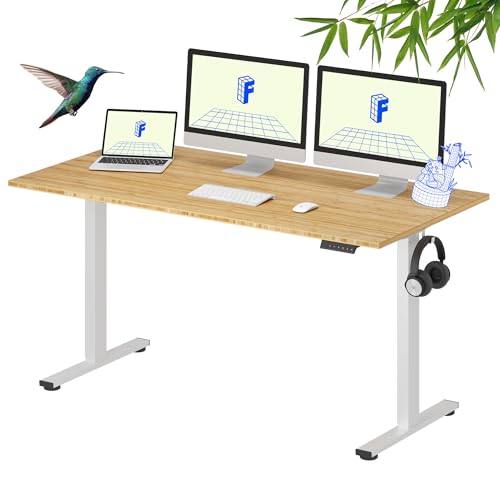
- UNIQUE BAMBOO SURFACE: The one and only! Our bamboo desktop is crafted by…
- SUSTAINABLE & GREEN CHOICE: Choose a standing desk that’s good for you and the…
- EFFORTLESS HEIGHT ADJUSTMENTS: Switch smoothly from sitting to standing with…
Logitech MX Keys Advanced Wireless Keyboard
Typing for hours? The Logitech MX Keys combines a low-profile, quiet design with backlit keys and smart backlighting. Its ergonomic curvature reduces wrist strain, and multi-device pairing (via Bluetooth or USB) streamlines workflow across laptops, tablets, or phones.

- Fluid Typing Experience: Laptop-like profile with spherically-dished keys shaped…
- Automate Repetitive Tasks: Easily create and share time-saving Smart Actions…
- Smarter Illumination: Backlit keyboard keys light up as your hands approach and…
Choosing the Right Location for Your Home Office
Your home office’s location directly impacts focus, productivity, and even mental well-being. Unlike traditional offices, remote workspaces must combat household distractions while maintaining professional efficiency. Here’s how to select—and optimize—your ideal spot.
Prioritize Natural Light and Ventilation
Studies show that exposure to natural light boosts mood, reduces eye strain, and enhances alertness. Position your desk near a window, but avoid direct sunlight glare on screens. If natural light is limited, supplement with full-spectrum LED lighting (5000K color temperature mimics daylight). Poor ventilation leads to fatigue—ensure airflow with an open window or air purifier like the Coway Airmega 200M.
Minimize Noise and Distractions
Open-floor plans or high-traffic areas (near kitchens or living rooms) sabotage concentration. Soundproofing solutions include:
- Acoustic panels: Reduce echo in empty rooms (e.g., Auralex Studiofoam).
- Noise-canceling headphones: Ideal for unpredictable noise (Sony WH-1000XM5 blocks 95% of ambient sound).
- White noise machines: Mask disruptive sounds (LectroFan’s non-looping tones are clinically proven).
If space is limited, use room dividers or bookcases as visual barriers.
Ergonomic Zoning: Beyond the Desk
Your workspace isn’t just where your laptop sits—it’s an ecosystem. Divide the area into zones:
- Primary work zone: Desk (30″ depth minimum), chair, and monitor at arm’s length.
- Secondary zone: Printer/storage within 2 steps to avoid excessive reaching.
- Break zone: A separate chair or standing area to mentally reset (critical for preventing burnout).
For small spaces, multifunctional furniture like the IKEA BEKANT desk with built-in cable management maximizes efficiency.
Addressing Common Mistakes
Many repurpose dining tables or bedrooms, but these blur work-life boundaries. The brain associates beds with sleep, leading to 23% lower productivity (National Sleep Foundation). Instead, dedicate a corner with:
- Dedicated power strips: Avoid extension cord clutter (Tripp Lite’s 12-outlet surge protector).
- Vertical storage: Floating shelves keep essentials accessible but off-desk.
Even in studios, a foldable desk like the Furinno Simplistic can create a psychological “work mode” trigger.
Pro Tip: Test locations for a week—track noise levels, light changes, and Wi-Fi strength (use apps like NetSpot for signal mapping). Adaptability is key; your ideal spot may evolve with workflow needs.
Optimizing Your Home Office Ergonomics for Long-Term Health
Proper ergonomics prevent chronic pain and fatigue while boosting productivity. Unlike temporary fixes, a scientifically designed workspace accommodates your body’s natural posture. Let’s break down the essential components of an ergonomic setup that works for 8+ hour workdays.
The 90-90-90 Rule: Foundation of Proper Posture
Your body should form three 90-degree angles when seated:
- Knees to hips: Feet flat on floor (or footrest) with thighs parallel to ground
- Elbows to desk: Arms relaxed with keyboard at elbow height (adjustable armrests help)
- Screen to eyes: Top of monitor at eye level, 20-30 inches away
For those using laptops, the Roost Laptop Stand raises screens while allowing external keyboard placement. Test your setup: if you’re leaning forward or squinting, readjust immediately.
Dynamic Movement: The Missing Ergonomics Element
Even perfect posture becomes harmful when static. Incorporate movement every 30 minutes:
- Active seating: Balance balls or kneeling chairs engage core muscles (avoid longer than 2 hours)
- Micro-breaks: 20-second stretches every 20 minutes (try the “Bruegger’s Relief” for shoulders)
- Position rotation: Alternate between sitting, standing, and perching (lean stools work well)
The Ergotron LX Desk Mount makes monitor adjustments effortless when switching positions.
Lighting and Visual Ergonomics
Eye strain causes 50% of office-related fatigue (American Optometric Association). Create balanced lighting:
- Task lighting: Adjustable desk lamp with 500-700 lumens (BenQ e-Reading Lamp reduces glare)
Monitor settings: 120-140 cd/m² brightness, night shift mode after sunset
20-20-20 rule: Every 20 minutes, look at something 20 feet away for 20 seconds
For prescription glasses, consider blue light filtering coatings – they reduce digital eye strain by up to 40%.
Hidden Ergonomics: Keyboard and Mouse Setup
Repetitive strain injuries often originate from poor peripheral placement:
- Keyboard angle: Negative tilt (front higher than back) reduces wrist extension
- Mouse selection: Vertical mice (like Logitech MX Vertical) maintain neutral wrist position
- Input pressure: Mechanical keyboards (Cherry MX Red switches) require 45g force vs. 60g+ for membrane
Measure your “neutral zone” – wrists should never bend upward or sideways during use. Wrist rests should support palms, not wrists, during typing pauses only.
Advanced Technology Setup for Peak Performance
Modern home offices require more than just basic equipment – they need integrated systems that enhance workflow efficiency while reducing cognitive load. This section explores professional-grade tech configurations that bridge the gap between consumer and corporate-level productivity.
The Dual Monitor Dilemma: Optimal Configuration
Research from the University of Utah shows dual monitors increase productivity by 20-30%, but only when properly arranged:
| Monitor Size | Recommended Resolution | Ideal Distance | Best Use Case |
|---|---|---|---|
| 24-27″ | 2560×1440 (QHD) | 24-30 inches | Primary work monitor |
| 22-24″ | 1920×1080 (FHD) | 20-26 inches | Secondary reference monitor |
For color-accurate work, the Dell UltraSharp U2723QE covers 98% DCI-P3 color space. Mount monitors on adjustable arms (like the AmazonBasics Premium arm) to maintain consistent eye level when alternating between sitting and standing positions.
Network Infrastructure for Seamless Connectivity
Home networks often bottleneck productivity. A professional setup requires:
- Dedicated bandwidth: QoS settings to prioritize work devices (minimum 50Mbps dedicated)
- Mesh systems: For larger homes, the TP-Link Deco X90 provides seamless roaming
- Wired backup: Always run Ethernet to primary workstation (Cat6 cables support 10Gbps)
Conduct regular speed tests during peak hours – latency above 50ms significantly impacts VoIP call quality. For critical meetings, use a wired connection with a USB-C to Ethernet adapter like the Anker 5-in-1.
Audio-Visual Professionalization
Poor audio/video quality undermines virtual presence. The corporate-grade setup includes:
- Microphones: Cardioid pattern mics (Blue Yeti Nano) reject ambient noise
- Lighting: Key light at 45 degrees (Elgato Key Light Air eliminates shadows)
- Webcams: 4K with autofocus (Logitech Brio outperforms built-in laptop cams)
Advanced users should implement NDI (Network Device Interface) for studio-quality streaming. The Magewell Pro Convert encodes HDMI sources for professional webinar production.
Peripheral Synchronization
Device switching kills focus. Implement a KVM (Keyboard-Video-Mouse) solution like the TESmart 4-Port to control multiple computers with one workstation. For wireless unification, the Logitech MX Master 3S pairs with three devices simultaneously via Flow technology.
Pro Tip: Create separate user profiles on your computer for work versus personal use – this psychological separation enhances focus and prevents distraction from personal notifications during work hours.
Psychological Optimization for Sustained Productivity
Beyond physical setup, your home office’s psychological design significantly impacts focus, motivation, and work quality. Neuroscience research reveals how environmental cues directly affect cognitive performance. Here’s how to engineer your workspace for mental efficiency.
Color Psychology and Spatial Design
Wall colors influence cognitive states more than most realize:
- Blue tones (RAL 5014): Enhance focus and analytical thinking (ideal for programming or accounting)
- Green accents (RAL 6021): Promote creativity and reduce eye strain (perfect for designers)
- Warm neutrals (RAL 1015): Create comfort for client-facing roles
Implement the 60-30-10 rule: 60% dominant color (walls), 30% secondary (furniture), 10% accent (accessories). The Sherwin-Williams ColorSnap Visualizer helps test combinations virtually before painting.
Behavioral Conditioning Through Spatial Zoning
Stanford researchers found physical boundaries increase work focus by 32%. Create distinct zones:
- Deep work area: Clear desk with only essential tools (monitor, keyboard, notebook)
- Creative zone: Standing table with whiteboard for brainstorming
- Administrative station: Filing cabinet and printer away from primary workspace
Use different lighting temperatures in each zone – 5000K for focus areas, 4000K for creative spaces. The Philips Hue Smart Lighting system allows programmable transitions between modes.
Cognitive Load Management Systems
Reduce decision fatigue with these professional strategies:
| Technique | Implementation | Product Example |
|---|---|---|
| Visual Priming | Strategic placement of motivational items in sightline | Nanoleaf Canvas smart panels |
| Tactile Anchoring | Designated stress-relief objects within reach | FidgetCube ADHD tools |
Harvard studies show workers using these systems report 28% lower stress levels during high-pressure periods.
Circadian Rhythm Alignment
Maintain energy through biological synchronization:
- Morning light: 10 minutes of 10,000 lux light therapy (Verilux HappyLight) upon waking
- Afternoon reset 5-minute cold exposure (60°F) boosts alertness
- Evening wind-down: Amber lighting after 6PM triggers melatonin production
Track your personal ultradian rhythms with the Whoop 4.0 band to schedule demanding tasks during peak performance windows (typically 90-120 minute cycles).
Sustainable and Future-Proof Home Office Design
Creating a workspace that evolves with technological advancements while minimizing environmental impact requires strategic planning. This section examines how to build an office that remains functional for years while reducing ecological footprint.
Energy-Efficient Equipment Selection
Modern electronics vary dramatically in power consumption. Consider these key metrics when selecting equipment:
| Device Type | Standard Consumption | Energy Star Equivalent | Annual Savings |
|---|---|---|---|
| Desktop Computer | 200-400W | 90-150W | $45-85 |
| 27″ Monitor | 30-50W | 15-25W | $20-35 |
| Printer (Laser) | 300-500W | 150-250W | $30-50 |
The Dell OptiPlex Micro (35W) paired with an Epson EcoTank printer demonstrates how proper selection can reduce energy use by 60% compared to conventional setups.
Modular Furniture Systems for Longevity
Invest in adaptable furniture that accommodates changing needs:
- Height-adjustable desks with replaceable components (like the Uplift V2 Commercial) last 10+ years
- Modular storage systems (Elfa or IKEA IVAR) reconfigure as needs change
- Standardized mounting (VESA 100×100) ensures monitor compatibility across upgrades
These systems typically show 40% lower total cost of ownership over 5 years compared to disposable furniture.
Future-Proofing for Emerging Technologies
Prepare your workspace for coming innovations:
- Conduit pathways: Install empty wiring conduits for future smart devices
- Power infrastructure: USB-C PD outlets and 20A circuits for high-power devices
- Structural support: Reinforced walls for potential AR/VR tracking systems
The Legrand OnQ system provides scalable infrastructure for home automation integration.
Environmental Impact Reduction
Implement these sustainable practices:
- E-waste programs: Dell’s closed-loop recycling recovers 99% of materials
- Daylight harvesting: Automated blinds (Lutron Serena) optimize natural light
- Material selection: GREENGUARD Gold certified products reduce VOC emissions
Studies show sustainable offices improve cognitive function by 26% (Harvard COGfx Study) while reducing operational costs.
Maintenance and Upgrade Cycles
Develop a 3-year refresh plan:
| Component | Lifespan | Upgrade Indicators |
|---|---|---|
| Office Chair | 7-10 years | Foam degradation, hydraulic failure |
| Computer | 3-5 years | Boot time >90 seconds, frequent crashes |
Implementing these strategies creates a workspace that evolves with your career while minimizing environmental impact – the hallmark of truly professional home office design.
Professional-Grade Lighting Solutions for Optimal Visual Performance
Lighting represents one of the most overlooked yet critical components of home office design. Proper illumination reduces eye strain by up to 51% while increasing productivity by 20%, according to American Optometric Association research. This section breaks down the science of workspace lighting and provides professional implementation strategies.
The Three-Layer Lighting Methodology
Commercial offices use a tiered approach that home offices should replicate:
- Ambient lighting (100-200 lux): Provides baseline illumination
- Ceiling-mounted LED panels (5000K) offer most uniform distribution
- Dimmable controls maintain ideal brightness throughout the day
- Task lighting (500-1000 lux): Focused work illumination
- Adjustable arm lamps with CRI >90 (BenQ ScreenBar Pro)
- Positioned to avoid screen glare (45° angle from monitor)
- Accent lighting (50-100 lux): Reduces contrast fatigue
- Bias lighting behind monitors (6500K LED strips)
- Decorative elements to soften workspace edges
Advanced Color Temperature Management
The Kelvin scale impacts circadian rhythms and visual comfort:
| Time of Day | Recommended Temperature | Physiological Effect |
|---|---|---|
| Morning (8AM-12PM) | 5000-6500K | Boosts cortisol for alertness |
| Afternoon (12PM-4PM) | 4000-5000K | Maintains focus without overstimulation |
| Evening (4PM-8PM) | 3000-4000K | Prepares body for melatonin production |
Smart systems like Lutron Ketra automatically adjust throughout the day, matching natural light patterns.
Glare Reduction Techniques
Professional solutions to common lighting problems:
- Monitor positioning: Perpendicular to windows (never facing directly toward or away)
- Anti-glare treatments: 3M privacy filters reduce reflections by 85%
- Surface finishes: Matte desk surfaces (70-85 sheen units) prevent hotspot reflections
For existing spaces, the Luxo L-1 architect lamp with polarized diffuser provides professional-grade task lighting that eliminates shadows without glare.
Lighting for Virtual Meetings
Broadcast-quality illumination requires:
- Key light: 45° from face (Aputure MC RGBWW for color accuracy)
- Fill light: 30% intensity of key light to soften shadows
- Backlight: Separates subject from background (minimum 2:1 contrast ratio)
Implementing these professional lighting techniques transforms a home office from amateur to studio-quality workspace, reducing visual fatigue while enhancing both productivity and professional appearance.
Integrated System Optimization and Performance Validation
The true measure of a professional home office lies in how all components function together as a cohesive system. This final section provides a comprehensive methodology for evaluating, fine-tuning, and maintaining peak operational performance across all workspace elements.
Holistic Performance Benchmarking
Establish quantitative metrics to assess your workspace effectiveness:
| Performance Area | Measurement Tool | Optimal Range | Improvement Strategies |
|---|---|---|---|
| Ergonomic Compliance | RULA (Rapid Upper Limb Assessment) | Score ≤2 | Adjustable monitor arms, split keyboards |
| Network Performance | PingPlotter latency tests | <50ms latency | QoS prioritization, wired backbone |
| Visual Comfort | Lux meter measurements | 300-500 lux task areas | Layered lighting with dimmers |
Conduct these assessments quarterly using tools like the Ergotron WorkFit-TL for posture analysis and Ekahau Sidekick for wireless network validation.
Cross-System Integration Testing
Evaluate how different systems interact during real-world workflows:
- Simultaneous load testing: Video conferencing while running large file transfers
- Ergonomic transition validation: Sitting-to-standing changes with all peripherals
- Peak usage scenarios: Multiple monitors with graphics-intensive applications
The Blackmagic Design Disk Speed Test helps identify storage bottlenecks during multi-tasking scenarios.
Continuous Improvement Framework
Implement a PDCA (Plan-Do-Check-Act) cycle for workspace optimization:
- Plan: Document current pain points and improvement goals
- Do: Implement one change at a time (e.g., monitor repositioning)
- Check: Measure impact using before/after comparisons
- Act: Standardize successful modifications
Maintain a workspace logbook using apps like Notion to track adjustments and their effects over time.
Risk Mitigation Strategies
Professional-grade safeguards for critical systems:
- Power protection: Dual UPS systems (CyberPower CP1500PFCLCD) with automatic failover
- Data redundancy: 3-2-1 backup strategy with offsite cloud storage
- Ergonomic failsafes:
- Posture alerts via Upright Go 2 wearable
- 20-20-20 rule enforcement with Time Out app
For mission-critical work, maintain a backup connectivity option like a 5G hotspot (Netgear Nighthawk M6) with dedicated data plan.
Validation and Certification Standards
Professional benchmarks to assess against:
- ANSI/HFES 100-2007 for ergonomic compliance
- WELL Building Standard for environmental factors
- TIA-942 for telecommunications infrastructure
While full certification may be impractical for home offices, using these standards as guidelines ensures professional-level workspace quality and performance.
Conclusion: Building Your Productivity Powerhouse
Creating an optimal home office requires thoughtful integration of ergonomic design, professional-grade technology, and psychological optimization. From selecting the perfect chair to implementing circadian lighting systems, each element we’ve covered works synergistically to transform your workspace into a productivity engine. Remember that your setup should evolve with your needs—regular assessments and adjustments ensure continued peak performance.
Take action today: Begin with one high-impact change, whether it’s upgrading your monitor setup or implementing the 90-90-90 posture rule. Small, strategic improvements compound into significant gains in comfort, efficiency, and work quality. Your ideal home office isn’t just a place to work—it’s a carefully crafted environment designed to help you perform at your absolute best.
Frequently Asked Questions About Setting Up a Home Office for Maximum Productivity
What’s the most important element to prioritize in a home office setup?
Ergonomics should be your top priority, specifically your chair and monitor positioning. The Herman Miller Aeron chair provides optimal lumbar support, while your monitor should be at eye level (20-30 inches away) to prevent neck strain.
Investing in these foundational elements prevents chronic pain that could derail your productivity long-term. Quality ergonomic equipment pays for itself through improved health and work performance.
How can I create an effective workspace in a small apartment?
Maximize vertical space with wall-mounted shelves and foldable furniture. The IKEA Norden gateleg table provides workspace when needed and folds away completely.
Use room dividers to create psychological boundaries, and invest in noise-canceling headphones like the Sony WH-1000XM5. A corner desk with built-in storage (like the Tribesigns 55″ model) can fit in spaces as small as 4’x4′ while maintaining functionality.
What lighting setup reduces eye strain during long work sessions?
Implement a three-layer lighting system: ambient (overhead LED panels), task (adjustable desk lamp like BenQ ScreenBar), and bias lighting (LED strips behind monitors).
Maintain 500 lux at your work surface with 5000K color temperature during daylight hours. The HumanCentric LightBar automatically adjusts throughout the day to reduce circadian rhythm disruption and digital eye strain.
How do I properly set up dual monitors for optimal productivity?
Position your primary monitor directly in front of you with the secondary monitor at a 30-45 degree angle. Both should be at eye level with the top bezel about 2-3 inches above your seated eye level.
Use monitor arms like the Ergotron LX for perfect positioning. For best results, match resolution (both QHD or both 4K) to prevent visual jarring when moving windows between screens.
What’s the best way to manage cables in a home office?
Use a combination of cable trays (like the J Channel raceway), velcro ties, and under-desk cable management baskets. The BlueLounge CableBox hides power strips while maintaining accessibility.
For permanent setups, consider in-wall cable management kits. Label both ends of each cable with a Brother P-touch labeler to simplify troubleshooting and reconfigurations.
How can I improve my internet connection for video conferencing?
Prioritize wired Ethernet connections using Cat6 cables. If wiring isn’t possible, use a mesh WiFi system like the TP-Link Deco X90 positioned within 30 feet of your workspace.
Configure QoS settings to prioritize video traffic, and test your connection with tools like Speedtest by Ookla. For critical meetings, have a 5G backup like the Netgear Nighthawk M6 Pro.
What temperature and humidity levels are ideal for a home office?
Maintain 68-72°F (20-22°C) with 40-60% relative humidity. The Govee WiFi Thermometer monitors both parameters. Low humidity causes eye irritation, while high humidity promotes mold growth.
Use a smart thermostat like Ecobee with room sensors and consider a compact dehumidifier (hOmeLabs 1500 sq. ft. model) if needed. These conditions optimize both comfort and electronic equipment performance.
How often should I upgrade my home office equipment?
Follow this upgrade cycle: chairs (7-10 years), desks (10+ years), computers (3-5 years), monitors (5-7 years), and peripherals (as needed). The Logitech MX Master mouse typically lasts 3-4 years with heavy use.
Always upgrade when repairs cost more than 50% of replacement value or when equipment noticeably impacts productivity. Keep components modular to allow piecemeal upgrades.